Sind Sie auf gallery-dl Coomer DDOS Guard gestoßen? Probieren Sie diese Lösungen

gallery-dl wird von fortgeschrittenen Nutzern häufig zum Herunterladen von Bildern von verschiedenen Websites verwendet. Bei der Verwendung von gallery-dl mit Coomer treten jedoch häufig Download-Fehler, Zugriffsverweigerungsmeldungen oder unerwartete Probleme auf. Die häufigste Ursache hierfür ist DDOS Guard, ein von Coomer implementiertes Schutzsystem gegen Missbrauch und automatisierten Datenverkehr.
Besonders frustrierend an diesem Problem ist, dass gallery-dl an einem Tag einwandfrei funktionieren und am nächsten Tag komplett versagen kann, selbst bei identischen Befehlen und Einstellungen. Diese Unbeständigkeit veranlasst viele Nutzer, nach Lösungen und Alternativen zu suchen.
In diesem Artikel erklären wir, was Coomer DDOS Guard ist, warum es mit gallery-dl interferiert und wie Sie versuchen können, Probleme mit gallery-dl und Coomer DDOS Guard zu beheben.

1. Was ist Coomer DDOS Guard?
DDOS Guard ist ein Websicherheitsdienst, der Websites vor schädlichem Datenverkehr schützen soll, einschließlich:
- Verteilte Dienstverweigerungsangriffe (DDoS)
- Automatisierte Datenextraktion und Massen-Download
- Übermäßige Anfragen von Nicht-Browser-Clients
Coomer nutzt DDOS Guard, um die Serverstabilität zu gewährleisten und Missbrauch zu verhindern. Dieser Schutz ist zwar aus Sicherheitssicht effektiv, blockiert aber auch viele legitime Automatisierungstools.
2. Warum wird gallery-dl blockiert?
gallery-dl ist ein Kommandozeilen-Downloader, kein vollständiger Webbrowser. DDOS Guard erkennt dies durch die Analyse mehrerer Faktoren:
- Fehlende JavaScript-Ausführung
- Nicht standardmäßige Anfragemuster
- Vereinfachte HTTP-Header
- Fehlende oder ungültige Cookies
Da gallery-dl JavaScript-basierte Sicherheitsabfragen nicht bestehen kann, stuft DDOS Guard es häufig als Bot ein und schränkt den Zugriff ein.
Häufige Anzeichen einer Verstopfung sind:
- 403 Verbotene Fehler
- Meldungen „Zugriff durch DDOS-Schutz verweigert“
- Es wurden HTML-Dateien anstelle von Bildern heruntergeladen.
- Downloads werden nach einer geringen Anzahl von Dateien abgebrochen.
Diese Probleme veranlassen die Benutzer, nach Möglichkeiten zu suchen, gallery-dl in Verbindung mit Coomer zu „reparieren“.
3. Wie lassen sich Probleme mit dem Coomer DDOS Guard von gallery-dl beheben?
Eine dauerhafte Umgehungslösung gibt es nicht, aber einige vorübergehende Lösungen könnten helfen.
3.1 VPN-Server oder Land ändern
DDOS Guard wendet unterschiedliche Beschränkungen basierend auf IP-Reputation und Standort an. Ein Wechsel des VPN-Servers kann manchmal Abhilfe schaffen.
Nutzer berichten häufig von besseren Ergebnissen bei der Verwendung von VPN-Servern in:
- Deutschland
- Niederlande
- Frankreich
- Schweiz
Nach einem Wechsel Ihres VPN-Anbieters müssen Sie Coomer in der Regel in einem Browser erneut verifizieren und neue Cookies exportieren.
3.2 Verwendung von Browser-Cookies
Eine der häufigsten Umgehungsmethoden ist das Exportieren von Cookies aus einer Browsersitzung, die den DDOS Guard-Check bereits bestanden hat.
Schritte:
- Öffnen Sie Coomer in Chrome oder Firefox.
- Schließen Sie die DDOS Guard-Verifizierung ab.
- Cookies mithilfe einer Browsererweiterung exportieren
- Lade diese Cookies in gallery-dl
Dadurch kann gallery-dl eine verifizierte Sitzung wiederverwenden. Cookies können jedoch schnell ablaufen oder ungültig werden, was wiederholte Exporte erforderlich macht.
3.3 Benutzeragent und Anfrageeinstellungen anpassen
Die Anpassung des User-Agent-Strings von gallery-dl, um ihn an einen modernen Browser anzupassen, kann die Erkennungsrate leicht senken. Erhöhte Wiederholungsversuche und Timeouts können bei instabilen Verbindungen helfen, aber diese Maßnahmen allein beheben DDoS-Guard-Blockaden selten.
3.4 Einschränkungen der gallery-dl-Fixes
Selbst wenn diese Methoden funktionieren, haben sie klare Nachteile:
- Häufige manuelle Schritte
- Bei Änderungen der DDoS-Schutzregeln kann es leicht zu Ausfällen kommen.
- Nicht anfängerfreundlich
- Unzuverlässig für große Bildersammlungen
Für viele Benutzer ist die ständige Fehlerbehebung von gallery-dl mehr Aufwand als Nutzen.
4. Versuchen Sie es Imaget Massenbild-Downloader anstelle von gallery-dl
Wenn Ihr Hauptziel darin besteht, Bilder in Stapeln herunterzuladen, Imaget ist eine starke Alternative, die es wert ist, in Betracht gezogen zu werden.
Hauptmerkmale von Imaget :
- Unterstützung für alle Bildhosting-Websites, einschließlich Coomer.
- Eingebauter Browser zum Zugriff auf private oder geschützte Bilder.
- Alle Bilder und GIFs einer Webseite mit nur einem Klick herunterladen.
- Bilder von mehreren Seiten oder Tabs gleichzeitig herunterladen.
- Vorschau der Bilder und Auswahl der herunterzuladenden Bilder nach Größe oder Format.
- Laden Sie Bilder in den gängigen Formaten PNG/JPP/WebP oder im Originalformat herunter.
- Reibungsloser Betrieb auf beiden Windows und macOS.
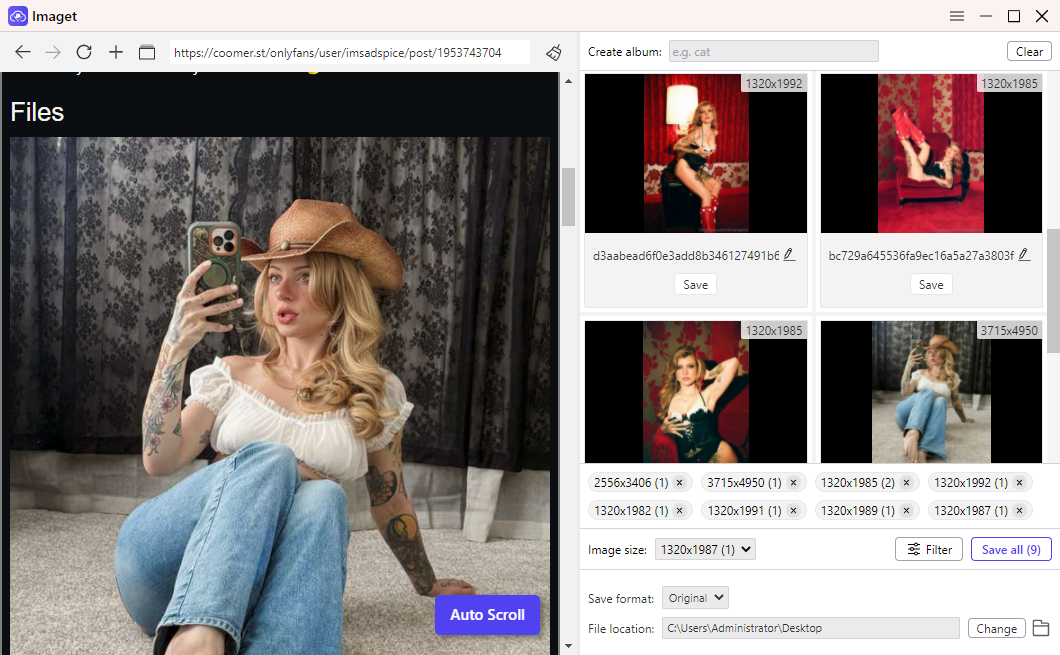
Schritte: Bilder von Coomer herunterladen Imaget
- Installieren Imaget Massenbild-Downloader und starten Sie die Anwendung
- Öffnen Sie Coomer in Imaget Suchen Sie mit dem Browser die Seite, die die Bilder enthält, die Sie herunterladen möchten.
- Scrollen Sie auf der Seite, um die verfügbaren Bilder zu extrahieren. Anschließend können Sie die gewünschten Bilder auswählen und die Download-Optionen (Ordner, Dateibenennung, Ausgabeformat) festlegen.
- Klicken Sie auf „Alle speichern“, und Image lädt alle ausgewählten Bilder von Coomer innerhalb weniger Sekunden auf Ihr Gerät herunter.
5. Schlussfolgerung
Coomers DDOS Guard erschwert automatisierte Downloads, und gallery-dl hat häufig mit blockierten Anfragen, fehlgeschlagenen Downloads und inkonsistentem Verhalten zu kämpfen. Zwar können Workarounds wie VPN-Änderungen, Cookie-Export und Anpassungen des User-Agents vorübergehend helfen, erfordern aber fortlaufenden manuellen Aufwand und sind für große Bildersammlungen unzuverlässig.
Für Benutzer, die sich auf das Herunterladen großer Mengen von Bildern konzentrieren, Imaget Bulk Image Downloader bietet eine einfachere und stabilere Lösung. Mit integriertem Browser, automatischer Sitzungsverwaltung, Bildextraktion mit einem Klick und einer benutzerfreundlichen Oberfläche. Imaget vermeidet viele der Probleme, die durch DDOS Guard verursacht werden.
Falls gallery-dl auf Coomer weiterhin fehlschlägt, Imaget ist die effizientere und zuverlässigere Wahl zum Herunterladen von Bildern.
- Wie kann ich nHentai-Manga herunterladen?
- Wo kann man den Chainsaw Man Manga lesen und wie kann man ihn herunterladen?
- Wie lade ich Manga von MangaOwl herunter?
- Wie benutzt man ImgHunt – Bulk Image Downloader?
- Wie findet und lädt man Minecraft-GIFs herunter?
- Wie kann ich verhindern, dass Google Fotos Sicherungskopien erstellt?
- Wie kann ich nHentai-Manga herunterladen?
- Wo kann man den Chainsaw Man Manga lesen und wie kann man ihn herunterladen?
- Wie lade ich Manga von MangaOwl herunter?
- Wie benutzt man ImgHunt – Bulk Image Downloader?
- Wie findet und lädt man Minecraft-GIFs herunter?
- Wie kann ich verhindern, dass Google Fotos Sicherungskopien erstellt?
- Wie finde und lade ich Bilder für ein schönes Wochenende herunter?