Übersicht der Chrome-Erweiterung „Massenbild-Downloader“: So verwenden Sie sie für Stapel-Downloads

Downloading images one by one from a website can quickly become tedious, especially when you need to save dozens or even hundreds of pictures. While Chrome’s built-in Save Image As option works well for individual files, it is not designed for large-scale image collection.
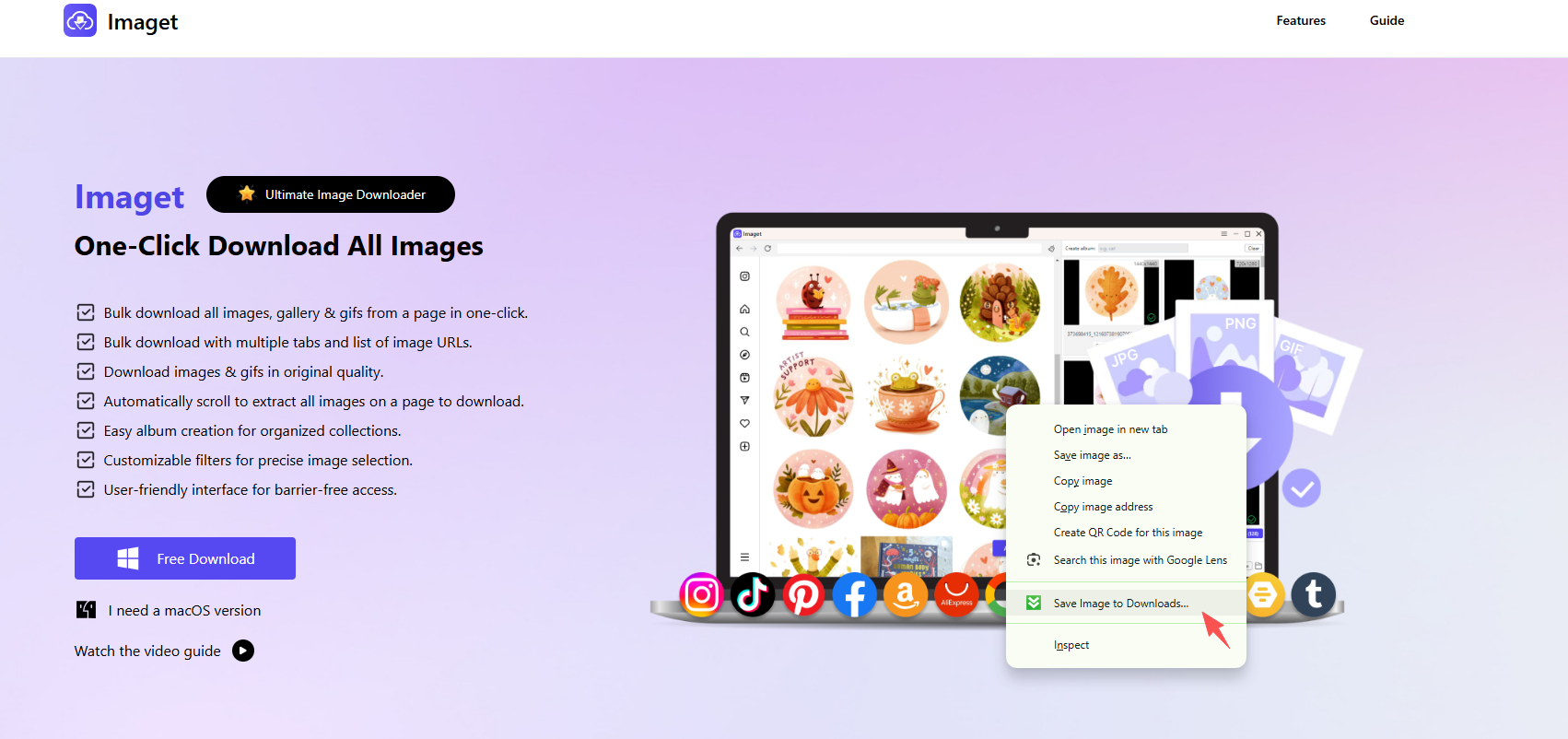
The Bulk Image Downloader Chrome Extension provides a more convenient way to collect images from one or multiple browser tabs. It can preview images, filter them by size and type, and download selected images in batches. It also supports right-click downloads and several tab-range options, making it useful for users who frequently work with online images.
In this guide, we’ll explain what Bulk Image Downloader is, how to use its main download methods, as well as compare its advantages and limitations.
1. What Is Bulk Image Downloader Chrome Extension?
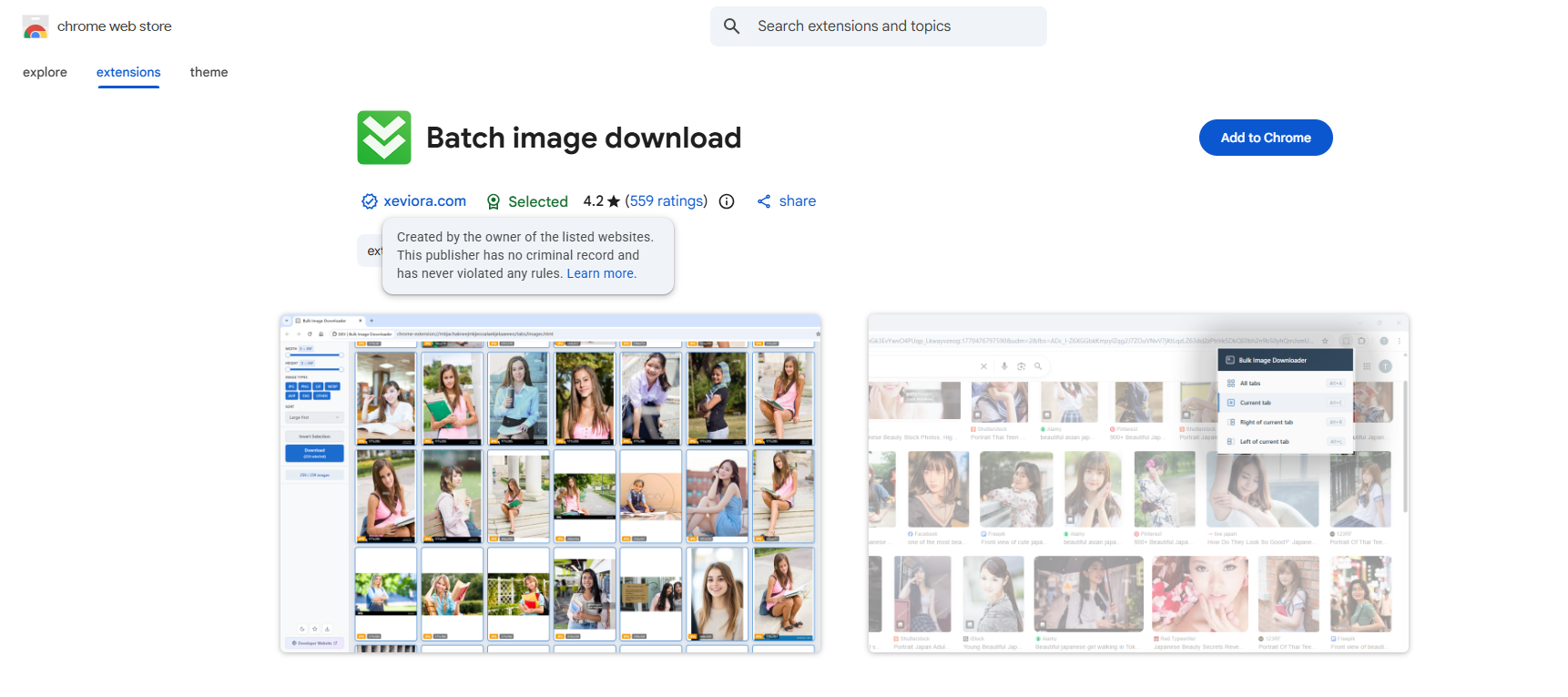
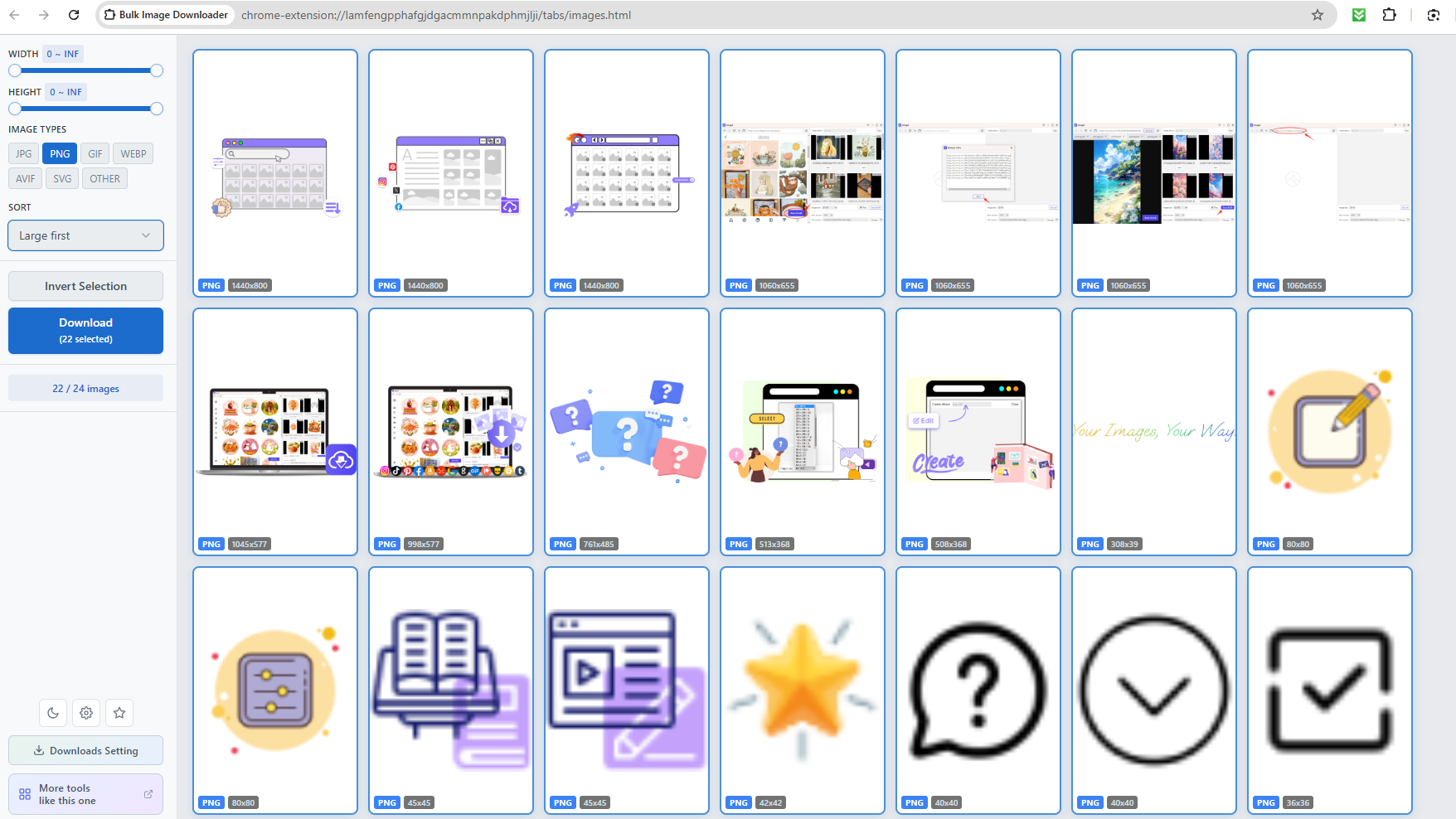
Massenbild-Downloader is a Chrome extension designed to download multiple images from websites. According to its Chrome Web Store listing, it can download images from the current page or multiple browser tabs and lets users filter images based on characteristics such as width, height, and file type.
The extension supports common image formats as well as modern formats including AVIF, WebP, and SVG . It can also recognize data-URI images generated by some AI image tools. Before downloading, users can preview detected images and select which ones they want to save.
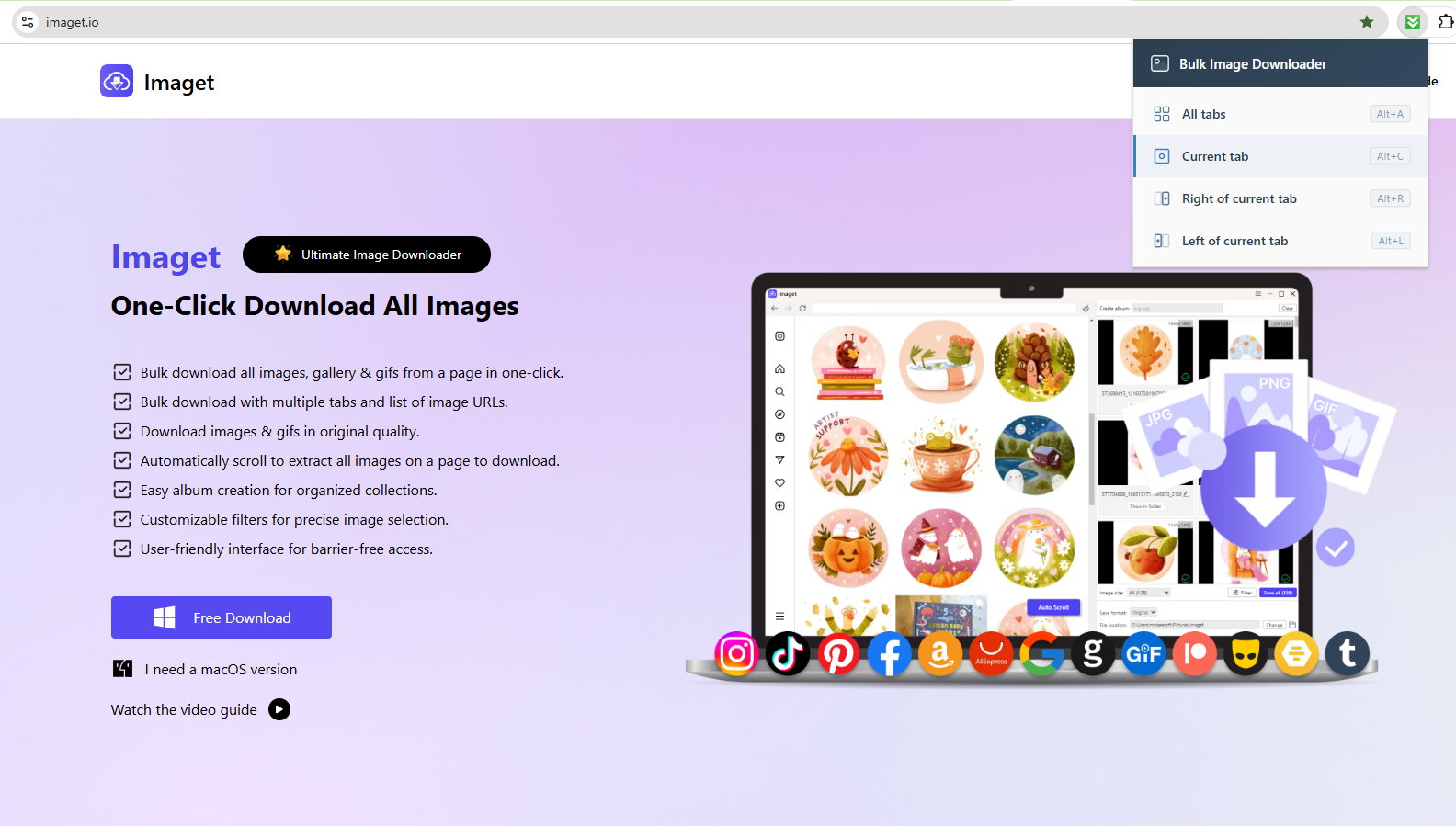
One of its most useful features is multi-tab downloading. Instead of processing every webpage separately, you can choose to download images from the current tab, all open tabs, or tabs located to the left or right of the current tab.
2. How to Use Bulk Image Downloader?
Using the extension is relatively straightforward. Here are the main ways to download images with it.
Schritt 1: Installieren Sie die Erweiterung
First, open the Massenbild-Downloader page in the Chrome Web Store and click Zu Chrome hinzufügen . After installation, you can access the extension from Chrome’s extensions menu.
For frequent use, you can pin the extension to the Chrome toolbar. This makes it easier to open whenever you need to download images.
- TurboImageHost Downloader für Chrome: So laden Sie Bilder ganz einfach herunter
- Wie kann ich Bilder von Wildskirts herunterladen?
- So extrahieren Sie Inhalte von Webseiten: 5 einfache Methoden
- Wie lade ich Bilder von Danbooru herunter?
- Die besten Imageboard-Websites, die man 2026 erkunden sollte
- Wie kann man NeoDownloader zum Herunterladen mehrerer Bilder verwenden?
- TurboImageHost Downloader für Chrome: So laden Sie Bilder ganz einfach herunter
- Wie kann ich Bilder von Wildskirts herunterladen?
- So extrahieren Sie Inhalte von Webseiten: 5 einfache Methoden
- Wie lade ich Bilder von Danbooru herunter?
- Die besten Imageboard-Websites, die man 2026 erkunden sollte
- Wie kann man NeoDownloader zum Herunterladen mehrerer Bilder verwenden?